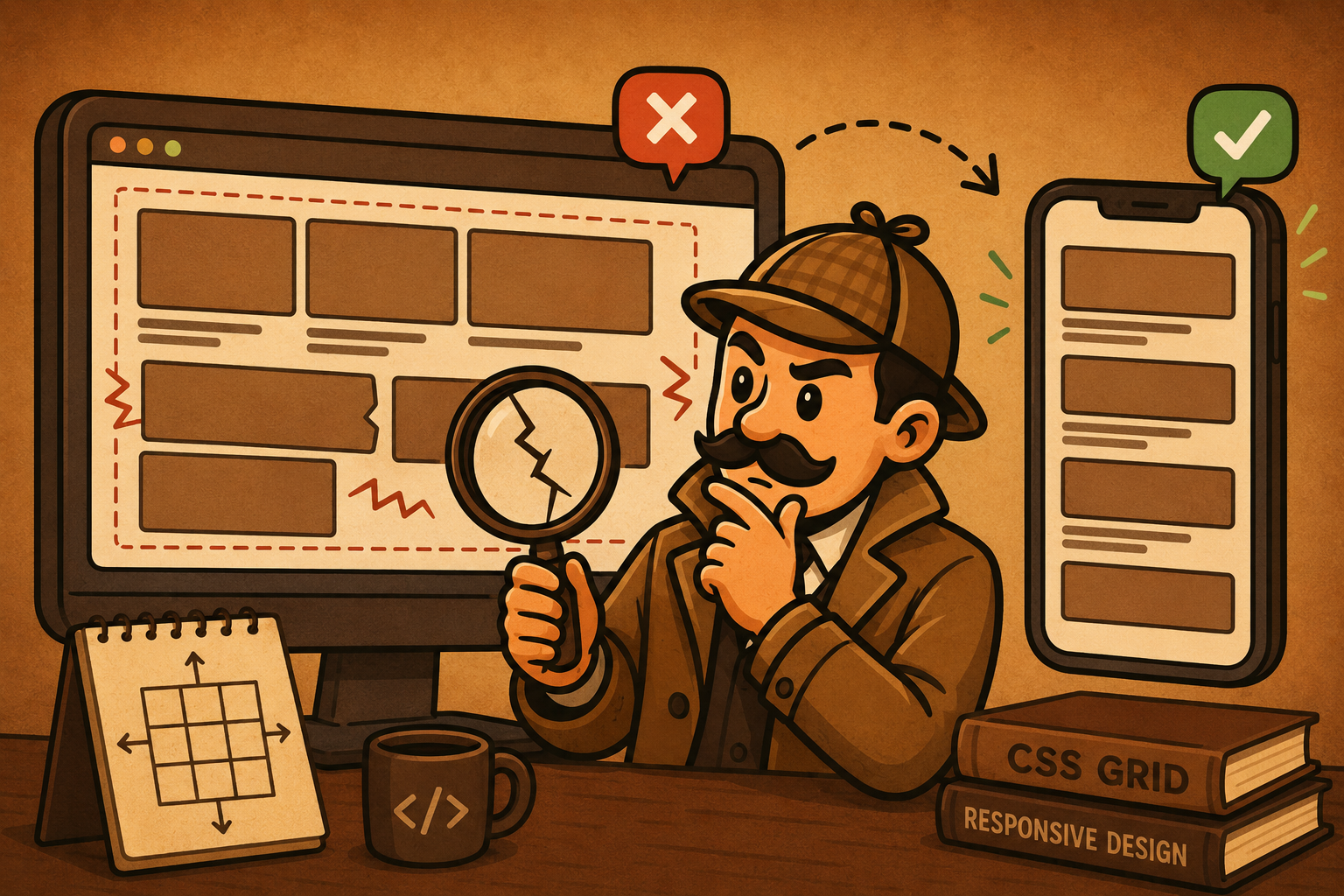
Your CSS Grid looks exactly how you wanted it to. Then you make the browser narrower.
The cards get crushed. One column disappears off the side of the page. A horizontal scrollbar appears. You change a few widths, add a media query, remove it again, and somehow the layout gets even stranger.
If that sounds familiar, the problem usually isn't CSS Grid itself. Something in your layout is telling the browser: this part cannot get any smaller. The trick is finding out what.
Resize the Grid and watch where the layout starts to fail.
1. Your columns are wider than the screen
This is one of the easiest ways to build a Grid that looks perfect on desktop and falls apart everywhere else. Imagine this:
.grid {
  display: grid;
  grid-template-columns: 300px 300px 300px;
  gap: 24px;
}
Three columns at 300px already need 900 pixels. Then you add two 24px gaps. Your Grid now needs 948 pixels before you even think about padding around the container. That works nicely when the available space is wider than 948 pixels. At 700 pixels, it can't. At 400 pixels, it definitely can't.
Fixed pixel widths don't negotiate with the available space. You told each column to be 300px, so the browser tries to honour that even when the container is smaller.
If you genuinely want equal columns that share whatever width is available, use flexible tracks with minmax(0, 1fr).
.grid {
  display: grid;
  grid-template-columns:
    repeat(3, minmax(0, 1fr));
  gap: 24px;
}There is one catch. Flexible columns can keep shrinking until the cards become technically responsive but practically useless. Three 110-pixel-wide cards on a phone are not necessarily a good responsive layout. Sometimes the Grid doesn't need smaller columns. It needs fewer columns.
2. You're forcing too many columns into the space
This is the next thing to check.
.grid {
  display: grid;
  grid-template-columns: repeat(4, 1fr);
}
That tells the browser: I want four columns. The browser will keep trying to give you four columns, even when four columns no longer make sense for the design. Four cards may look great on a wide desktop screen. On a tablet, three may be easier to read. On a phone, one card per row may be the right answer.
The number of columns is fixed even though the amount of available space isn't.
For repeated content such as cards, galleries or features, let Grid decide how many columns fit with auto-fit.
.grid {
  display: grid;
  grid-template-columns:
    repeat(auto-fit, minmax(220px, 1fr));
  gap: 24px;
}
Now the layout can move from four columns to three, two or one without you writing a breakpoint for every possible screen width.
Responsive Grid isn't always about making columns smaller. Sometimes the right fix is letting the number of columns change.
3. Your minimum width is not actually small enough
This one catches people because the CSS looks responsive. You may already be using:
grid-template-columns:
  repeat(auto-fit, minmax(300px, 1fr));
That feels like a responsive rule, and most of the time, it is. But minmax(300px, 1fr) means: do not make this track smaller than 300 pixels. Now imagine the entire Grid container is only 270 pixels wide. The Grid says it needs at least 300 pixels. The container says it only has 270. That's where overflow can appear.
Your minimum track size is wider than the space available.
Let the minimum respect the container when the component may become narrower than your preferred card width.
.grid {
  grid-template-columns:
    repeat(
      auto-fit,
      minmax(min(100%, 300px), 1fr)
    );
}4. The thing inside your Grid is too wide
Sometimes grid-template-columns isn't the problem at all. The Grid is perfectly capable of shrinking. One of its children isn't. Common offenders include large images, long URLs, code snippets, long strings with nowhere to break, inputs with their own minimum size, and nested layouts.
You can spend twenty minutes changing your Grid tracks when the actual problem is one image sitting inside one card.
Content inside a Grid item can impose its own sizing requirements. If it cannot shrink or wrap, it can force the Grid item wider than expected.
For images, a useful default is max-width: 100%; height: auto;. Long content may need wrapping. Identify which element is actually crossing the boundary rather than reaching for overflow: hidden.
5. Your spacing is taking more room than you realise
The columns themselves may not be particularly wide. Your gaps may be. Consider:
.grid {
  display: grid;
  grid-template-columns: repeat(3, 1fr);
  gap: 64px;
}
On a large monitor, 64px may look great. On a narrow container, the same gap uses a much larger percentage of the space you have available. With three columns, you have two gaps. At 64px each, that's 128 pixels of space that cannot be used by the columns.
The available width has to accommodate both your tracks and the spacing between them. Large gaps become much more significant as the container gets narrower.
Treat spacing as part of the responsive layout. Reduce the gap at smaller widths, or use a fluid value like gap: clamp(12px, 2vw, 24px);.
6. You may be solving the wrong problem with media queries
A common reaction to a broken Grid is to start adding breakpoints:
@media (max-width: 900px) { ... }
@media (max-width: 700px) { ... }
@media (max-width: 500px) { ... }
Media queries are useful. But they aren't automatically the first fix for every responsive Grid problem. If your content is simply a collection of cards that need to fit naturally into the available space, repeat(auto-fit, minmax(220px, 1fr)) may already give the browser enough information to respond without several arbitrary breakpoints.
You're using breakpoints to compensate for rigid Grid rules.
First ask whether Grid can respond based on the space available. Use a media query when the design actually needs to change - not just get narrower.
For example, a desktop layout might have a sidebar, main content and a secondary panel. On mobile, the right design might be no permanent sidebar, one content column and a menu button instead. That's not just a narrower version of the same layout - it's a different layout decision. A media query makes sense.
.layout {
  display: grid;
  grid-template-columns: 240px 1fr;
}
@media (max-width: 700px) {
  .layout {
    grid-template-columns: 1fr;
  }
  .sidebar {
    display: none;
  }
}
A useful rule of thumb: let Grid respond naturally when the content can simply rearrange. Use a media query when the design itself needs to change.
Check these six things before you rewrite your Grid
When a CSS Grid works on desktop but breaks on smaller screens, check these first.
- 1Fixed widths - look for tracks such as 300px 300px 300px
- 2Too many fixed columns - ask whether the layout should reduce the number of columns as space disappears
- 3Minimum widths - check whether a minmax() value is wider than the available container
- 4Oversized content - look for images, URLs, code or nested components crossing the Grid boundary
- 5Large gaps - remember that spacing has to fit inside the available width too
- 6Breakpoints - ask whether the design genuinely needs to change or whether the Grid rules are simply too rigid
A responsive Grid isn't one that never changes. It's one that has enough information to make sensible decisions as the available space changes. If you're constantly adding another breakpoint or another overflow: hidden, the problem may be that the Grid has been given rules that are too rigid in the first place.
You don't need to memorise every possible combination of auto-fit, minmax(), fractions and breakpoints. It is much easier to understand CSS Grid when you can see the layout change while you change the CSS. That's what Gridlock Holmes is built for.